
Wednesday, January 14, 2026
•By Kanad Shee
Better Auth
Better Auth with Next.js, shadcn UI, Tailwind CSS, OAuth, and more
Integrate Better Auth with Next.js
A comprehensive guide to implementing Better Auth in your Next.js application with email verification, social authentication, and beautiful form components using shadcn UI.
Integrating authentication into a modern web application can feel overwhelming—especially when juggling complex email verification flows, third-party OAuth providers, and secure session management. But with Better Auth, the process transforms from daunting to downright elegant.
In this comprehensive guide, I walk through how remarkably simple it is to implement Better Auth in a production-ready application. This modern authentication library brings a type-safe API, exceptional TypeScript support, and a highly flexible configuration system that integrates seamlessly with the latest Next.js App Router and server-side architecture.
I've successfully implemented Better Auth in my Autonode automation platform to create a secure, scalable, and user-friendly authentication system without reinventing the wheel. From handling email/password credentials with custom validation schemas to integrating OAuth providers like Google and GitHub, the Better Auth experience felt intuitive, developer-friendly, and production-ready. What truly stands out is how Better Auth's session handling and Prisma adapter allowed me to maintain a performant and secure application, all while keeping the codebase clean and maintainable.
The beauty of Better Auth lies in its plugin architecture and built-in email verification—features that would typically require days of custom implementation. Combined with shadcn UI's Base components, React Hook Form, and Zod validation, the result is an authentication system that's not just functional, but delightful to use for both developers and end-users.
Whether you're building a SaaS platform, an AI automation tool, or a community-driven application, Better Auth is a drop-in solution that scales effortlessly with your project. This guide will show you exactly how I built a complete authentication flow—from beautiful sign-up forms to email verification—and how you can replicate it in your own application with minimal configuration and a focus on best practices.
Introduction
This guide walks you through implementing Better Auth—a modern, type-safe authentication library for Next.js—complete with:
- Email & Password Authentication
- Social OAuth (Google & GitHub)
- Email Verification with Nodemailer
- Beautiful shadcn UI Forms
- Protected Routes
- PostgreSQL Database with Prisma
- Tailwind CSS Styling
Tech Stack
| Technology | Version | Purpose |
|---|---|---|
| Next.js | 16.1.0 | React framework with App Router |
| Better Auth | 1.4.8 | Authentication library |
| Prisma | 7.2.0 | Database ORM |
| PostgreSQL | Latest | Database |
| shadcn UI | Latest | UI components (Base Mira style) |
| Tailwind CSS | 4.x | Styling framework |
| Nodemailer | 7.0.12 | Email service |
| React Hook Form | 7.69.0 | Form management |
| Zod | 4.2.1 | Schema validation |
| Motion | 12.23.26 | Animations |
Prerequisites
Before starting, ensure you have:
- Node.js 18+ or Bun runtime installed
- PostgreSQL database running (local or cloud)
- SMTP email service credentials
- Google OAuth credentials (optional)
- GitHub OAuth credentials (optional)
- Basic knowledge of Next.js App Router
Project Structure
Authentication Flow
The authentication flow will work as
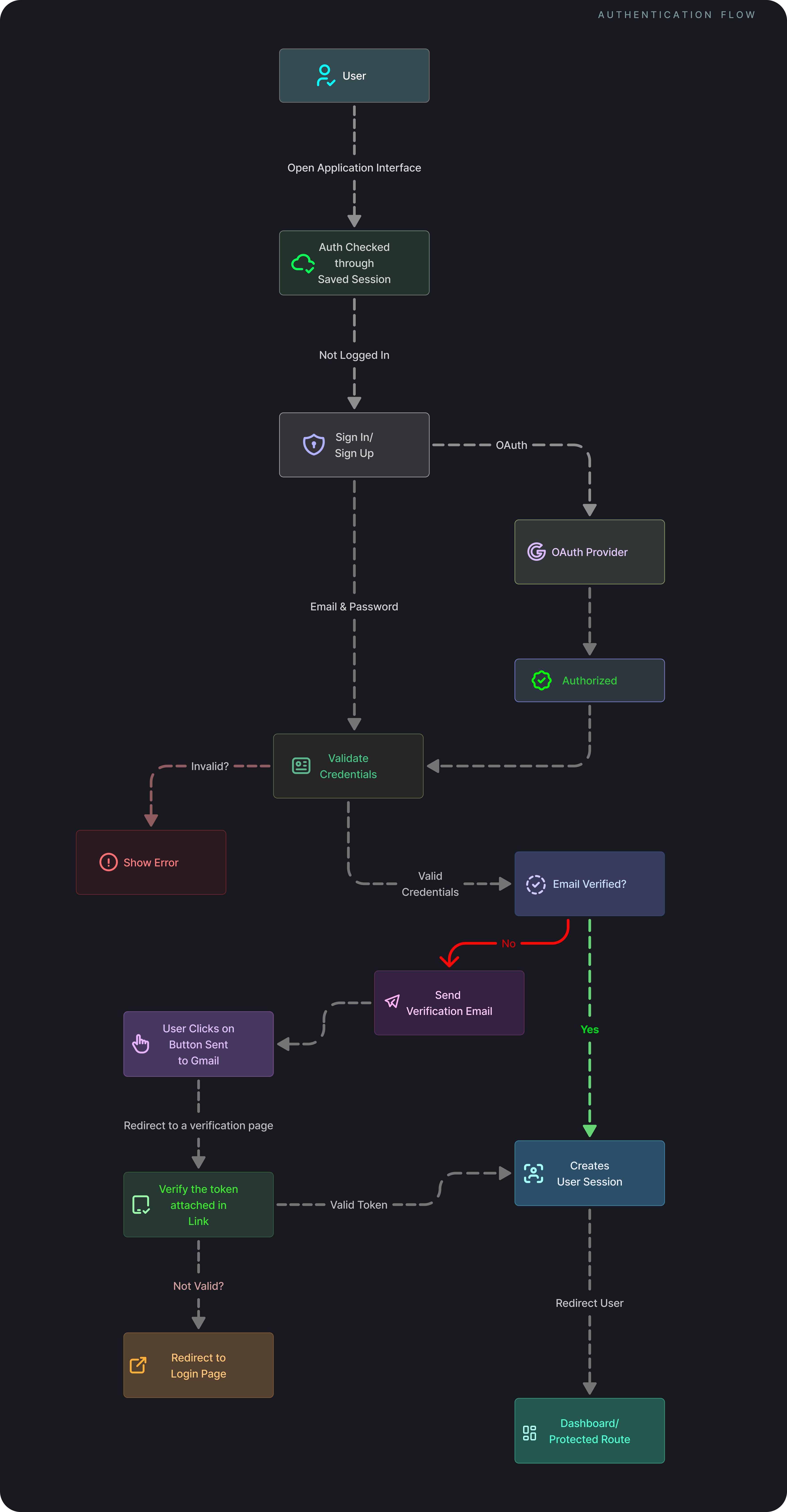
Installation and Setup
Install Dependencies
When initializing shadcn, use these settings:
Install Required shadcn Components
Better Auth Configuration
Install Better Auth Package
Add Better Auth to your project:
Configure Environment Variables
Set a Better Auth secret in your .env file:
Set the base URL for Better Auth:
Create Better Auth Instance
Create an Better Auth instance in @/lib/auth.ts:
Generate Better Auth Schema
Generate the database schema needed for Better Auth:
Migrate Schema to Database
Apply the schema migrations to your database:
Verify Prisma Schema
After running the above commands, your schema.prisma file should look like this:
File: prisma/schema.prisma
Generate Prisma Client and Run Migrations
Environment Variables Setup
Create a .env file in your project root:
File: .env
Important Notes:
- Generate
BETTER_AUTH_SECRETusing:openssl rand -base64 32 - For Gmail, enable 2FA and create an App Password
- OAuth credentials can be obtained from Google Cloud Console and GitHub Developer Settings
Better Auth Server Configuration
File: src/lib/db.ts
File: src/lib/auth.ts
File: src/app/api/auth/[...all]/route.ts
Better Auth Client Configuration
File: src/lib/auth-client.ts
Email Service Setup
File: src/lib/mail-sender.ts
Authentication Helper Functions
File: src/lib/auth-utils.ts
Building Authentication Forms
Create Validation Schema
File: src/features/auth/schema/index.ts
Build Sign In Form Component
File: src/features/auth/components/login-form.tsx
Login Form Features:
-
shadcn UI Components Used:
Card,CardHeader,CardContent,CardFooter- Structure the form layout with consistent stylingField,FieldGroup,FieldLabel,FieldError- Form field components from shadcn Base UIInput- Text input component with custom styling and icon supportButton- Primary action button with loading states
-
Form Fields:
- Email Field - Uses
MailIconfrom Lucide React, validates email format with Zod - Password Field - Uses
IconLockfrom Tabler Icons, includes show/hide toggle withIconEye/IconEyeOff - Both fields display validation errors using
FieldErrorcomponent
- Email Field - Uses
-
On Form Submit:
- Validates input using Zod schema (LOGIN_SCHEMA)
- Calls
authClient.signIn.email()with email, password, and callback URL - Shows loading state with
isPendingwhile processing - Disables all inputs during submission
-
On Success:
- Displays success toast notification: "Logged In Successfully!"
- Redirects user to
/dashboardpage - Session is automatically created and stored in cookies
-
On Error:
- If email is not verified: Redirects to
/verify-emailpage - Error message is stored in
errMesgstate - Displays error in red alert box using
bg-destructive/10styling - Shows error toast notification
- Form is reset to clear password field
- Common errors: Invalid credentials, unverified email, network issues
- If email is not verified: Redirects to
Build Sign Up Form Component
File: src/features/auth/components/register-form.tsx
Register Form Features:
-
shadcn UI Components Used:
Card,CardHeader,CardContent,CardFooter- Form structure with shadcn Base Mira stylingField,FieldGroup,FieldLabel,FieldError- Base UI field components for consistent form layoutInput- Custom styled input with icon positioningButton- Submit button with loading and hover animations
-
Form Fields:
- Name Field - Uses
UserIconfrom Lucide, minimum 3 characters, max 30 characters - Email Field - Uses
MailIcon, validates email format with Zod - Password Field - Uses
IconLockfrom Tabler, includes show/hide toggle, validates strength (min 8 chars, uppercase, lowercase, number, special char) - Confirm Password Field - Uses
IconLockCheck, must match password field - All fields show validation errors using
FieldErrorbelow each input
- Name Field - Uses
-
On Form Submit:
- Validates all fields using Zod schema (REGISTER_SCHEMA)
- Checks if password and confirmPassword match
- Calls
authClient.signUp.email()with name, email, password - Shows loading state with spinner icon
- All inputs are disabled during submission
-
On Success:
- Form is reset to clear all fields
- Success toast notification: "You have been registered successfully!"
- Green success message displayed: "Verification email sent successfully!"
- Success message stored in
successMesgstate with emerald styling - User remains on sign-up page to check email for verification link
-
On Error:
- Error message stored in
errMesgstate - Displays error in red alert box with
bg-destructive/10background - Shows error toast notification: "Error while registering"
- Form is reset to clear password fields
- Common errors: Email already exists, weak password, network issues
- Error message stored in
Create Social OAuth Buttons Component
File: src/features/auth/components/social-buttons.tsx
OAuth Buttons Features:
-
shadcn UI Components Used:
Button- Outline variant buttons for social login with hover effects- Grid layout - Responsive 2-column grid (stacks on mobile)
-
OAuth Providers:
- Google - Uses
FcGooglecolored icon from react-icons - GitHub - Uses
FaGithubicon from react-icons - Each button shows provider-specific loading state with
LoaderIconspinner
- Google - Uses
-
On Button Click:
- Sets provider-specific loading state (
oauthGoogleLoadingoroauthGithubLoading) - Calls
authClient.signIn.social()with provider and callback URL - User is redirected to OAuth provider's consent screen
- After authorization, redirected back to app
- Sets provider-specific loading state (
-
On Success:
- User is automatically signed in
- Session created with OAuth account details
- Redirects to
/dashboardpage - No email verification required for social login
- User account linked to social provider
-
On Error:
- Error message stored in
errMesgstate - Red error alert displayed above buttons: "Something went wrong!"
- Loading state is cleared
- Common errors: User cancelled authorization, network issues, invalid OAuth credentials
- User can retry OAuth flow
- Error message stored in
Create Authentication Pages
File: src/app/(auth)/sign-in/page.tsx
File: src/app/(auth)/sign-up/page.tsx
Implementing Route Protection
Create Protected Layout
File: src/app/(protected)/layout.tsx
Create Dashboard Page (Example)
File: src/app/(protected)/(dashboard)/page.tsx
Create Verify Email Page
File: src/app/(auth)/verify-email/page.tsx
Build Resend Verification Button Component
File: src/app/(auth)/verify-email/resend-verification-button.tsx
Resend Verification Button Features:
-
shadcn UI Components Used:
Input- Email input field for user to enter their email addressButton- Action button with loading state during email sending
-
State Management:
isLoading- Controls button disabled state and textsuccess- Stores success message in green texterror- Stores error message in red textemail- Stores user input email address
-
On Button Click:
- Validates email is not empty
- Calls server action
checkUserEmailPresent(email)to verify user exists - Checks if email is already verified
- If valid, calls
authClient.sendVerificationEmail()with email and callback URL - Button text changes to "Resending" with disabled state
-
On Success:
- Success message displayed in green: "Verification Email Sent Successfully!"
- New verification email sent to user's inbox
- Email contains link to
/email-verifiedpage - User can check their email and click verification link
- Link expires in 5 minutes (Better Auth default)
-
On Error:
- Error message displayed in red text below input
- Common errors:
- "No user found with this email address" - Email not registered
- "Email is already verified" - User already completed verification
- "Something went wrong!" - Network or server issues
- User can correct email and try again
- Loading state is cleared, button becomes clickable again
Create Email Verified Success Page
File: src/app/(auth)/email-verified/page.tsx
Create Server Action for Email Validation
File: src/app/actions/check-user-email.ts
Testing the Implementation
1. Start Development Server
2. Test Email and Password Flow
- Navigate to
http://localhost:3000/sign-up - Fill out the registration form
- Check your email for the verification link
- Click the verification link
- You'll be redirected to
/email-verified - Navigate to
/dashboardto see your protected page
3. Test Social OAuth
- Navigate to
http://localhost:3000/sign-in - Click "Google" or "GitHub"
- Complete the OAuth flow
- You'll be redirected to
/dashboard
4. Test Protected Routes
- Try accessing
/dashboardwithout being logged in - You should be redirected to
/sign-in - After logging in, you can access
/dashboard
5. Test Email Verification Resend
- If you didn't receive the verification email
- Navigate to
/verify-email - Enter your email and click "Resend Verification Email"
- Check your inbox again
Troubleshooting
Common Issues and Solutions
Issue 1: Email Not Sending
Solution:
- Check your SMTP credentials in
.env - For Gmail, ensure you're using an App Password (not your regular password)
- Check spam/junk folder
- Verify
MAIL_HOSTis correct for your provider
Issue 2: Database Connection Error
Solution:
Issue 3: OAuth Not Working
Solution:
- Verify OAuth credentials in
.env - Check redirect URIs in Google/GitHub console:
- Google:
http://localhost:3000/api/auth/callback/google - GitHub:
http://localhost:3000/api/auth/callback/github
- Google:
- Ensure social providers are configured in auth.ts
Issue 4: Session Not Persisting
Solution:
- Clear browser cookies
- Check
BETTER_AUTH_SECRETis set in.env - Ensure cookies are enabled in browser
- Verify
nextCookiesplugin is added to client config
Issue 5: TypeScript Errors
Solution:
Issue 6: Verification Email Expired
Solution:
- Email verification links expire in 5 minutes (Better Auth default)
- Use the resend functionality on
/verify-emailpage - To change expiration time, modify Better Auth config:
Additional Resources
- Better Auth Documentation
- shadcn UI Components
- Prisma Documentation
- Next.js App Router
- React Hook Form
- Zod Validation
Conclusion
You now have a fully functional authentication system with:
- Email & password authentication with validation
- Social OAuth (Google & GitHub)
- Email verification with custom templates
- Protected routes
- Beautiful shadcn UI forms
- Type-safe database with Prisma
- Comprehensive error handling
This implementation is production-ready and follows best practices for Next.js 14+ applications. You can extend it further by adding features like password reset, two-factor authentication, or additional OAuth providers.
Built with ❤️ using Better Auth, Next.js, and shadcn UI